A trending topic: how to view Wi-Fi passwords with ncpa.cpl. Did you know? Many people are misled and think ncpa.cpl is a way to hack their neighbor’s Wi-Fi password. You’re wrong! The ncpa.cpl command displays the Network Connections Control Panel, which displays the network device: Wi-Fi adapter.
The method I use is relatively easy and the process is also fast, so it is not surprising that it is very popular.
ncpa.cpl is the default Windows software used to manage Wi-Fi passwords. So, if you’ve forgotten the Wi-Fi password connected to Windows or other operating systems, you can use the ncpa.cpl module, which is known for storing all data in the system registry.
Understanding ncpa.cpl WiFi
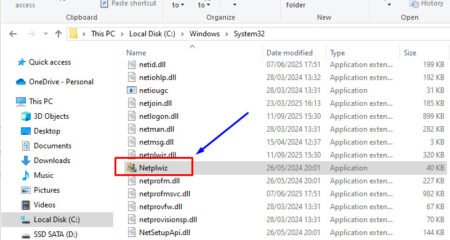
Generally, ncpa.cpl can be understood as a built-in Windows file that operates as an operating system module. You can find this file in the C:\Windows\System32 folder.

When your computer or laptop is turned on, the ncpa.cpl service also runs in the background because it is included in the main system category and is executed as a primary network property.
You can directly run the ncpa.cpl module command through Run to manage and view Wi-Fi passwords. In other words, the file is executed directly from the hard drive.
The Main Function of ncpa.cpl
Before discussing the guide to viewing the ncpa.cpl WiFi password, it’s important to first understand the main function of this Windows module.
The primary function of ncpa.cpl is to operate the entire network, including software and hardware, to ensure optimal connectivity. Additionally, users can manage the network, including entering WiFi passwords.
Essentially, this module automatically stores all previously connected passwords on your device. Therefore, finding the WiFi password on your laptop or computer will be much easier and more convenient if the device supports ncpa.cpl.
How to Show NCPA.CPL WiFi Password on your Laptop or Computer
Although finding your ncpa.cpl WiFi password is relatively easy, not all laptop or computer users understand how.
If you’re confused about how to use ncpa.cpl to view saved WiFi passwords, you can follow these steps:
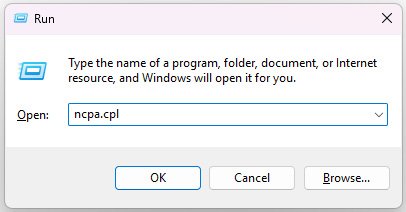
- Run the “Run” command, press the shortcut key “Windows + R”
- Ketik “ncpa.cpl” lalu “ncpa.cpl”

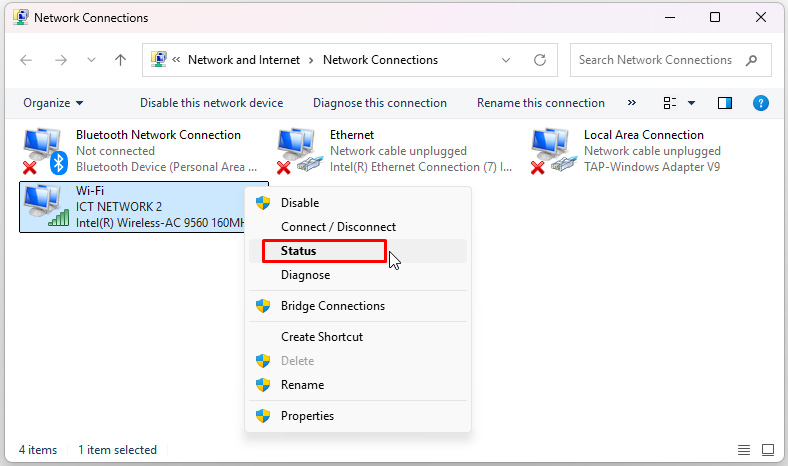
- Right click on the Wifi Adapter device, then select Status

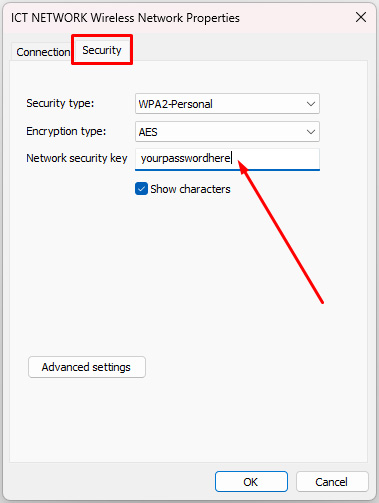
- Then click Wireless Properties

- Then, on the Security tab, check Show characters to display the Wi-Fi password/Network Security Key. In conclusion, we now know the Wi-Fi password to which your computer is currently connected.


Note: Once again, this is a step to show the Wi-Fi password that is already connected properly to your computer. If the Wi-Fi has never been connected to your computer, you cannot apply this ncpa.cpl method, lol.

AUTHOR BIO
On my daily job, I am a software engineer, programmer & computer technician. My passion is assembling PC hardware, studying Operating System and all things related to computers technology. I also love to make short films for YouTube as a producer. More at about me…