
In the Windows operating system, there are several ways to open and manage network connections settings. One of the quickest and most convenient is through the ncpa.cpl command.
For computer technicians or users who frequently configure networks, this command is certainly familiar. However, for those who are hearing it for the first time like netplwiz, I’ll explain what ncpa.cpl is, how to use it, and its function in network configuration.
What is ncpa.cpl?
The ncpa.cpl command is a shortcut or run command in Windows which functions to open the Network Connections window. The ncpa.cpl command works on all versions of Windows, from Windows XP to Windows 11.
By running this command, users can directly access network settings without having to navigate through numerous menus or manual steps. The ncpa.cpl command helps speed up access to settings related to internet connections, Wi-Fi, and network adapters installed on the computer.
How to Use ncpa.cpl
Using this command is very easy. Here are the steps:
- Press the Windows + R to open the Run window.

- Type “ncpa.cpl” (without the quotes) and press Enter.
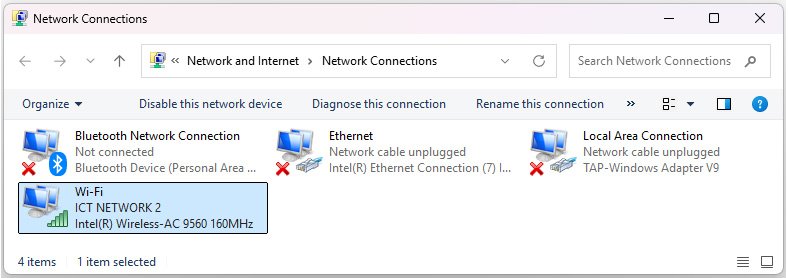
- The Network Connections window will open.

The image above is a display of the Network Connections window, where all network connections available on your computer will be displayed, such as Ethernet, WiFi, Bluetooth and VPN.
- Press the Windows + R to open the Run window.
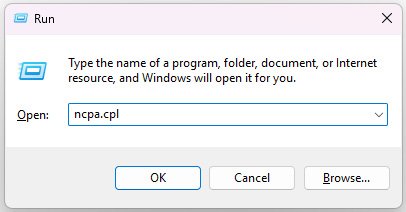
Apart from the Run window, we can also use ncpa.cpl with the CMD command.
Uses and Benefits of ncpa.cpl
This command has various useful functions, particularly in network management. Here are some of its main functions:
- Viewing Active Network ConnectionsThe Network Connections window displays a list of all active and inactive network connections. This includes wired Ethernet connections, Wi-Fi connections, VPN connections, and virtual network adapters.
- Enabling or Disabling Network ConnectionsIf you want to temporarily disable or re-enable a network connection, you can do so easily with this command. Right-click the network you want to manage and select Enable or Disable.
- Adjusting Network PropertiesThis command also allows you to access more advanced settings, such as IP addresses, DNS settings, or configure specific network protocols. You can do this by right-clicking the connection and selecting Properties.
- Troubleshooting Network ProblemsIf you’re experiencing network issues, you can start troubleshooting from this window. You can perform diagnostics on a specific network connection, view the connection status, or even delete and recreate the network configuration.
- Reconnecting a VPN ConnectionFor VPN users, ncpa.cpl makes managing your VPN connections easier. You can quickly disconnect and reconnect existing VPN networks.
Creating a Desktop Shortcut
To create a Network Connections shortcut on the desktop, follow these steps:
- Right-click on the desktop and select New → Shortcut.
- In the window that appears, type the following path: ncpa.cpl
- Click Next.
- Give the shortcut a name of your choice, for example, Network Connections.
- Click Finish.
The shortcut will appear on the desktop, and you can use it to open the Network Connections window directly.
Alternative Ways to Open Network Connections
We can access the Network Connections window manually via the following menus:
- Control Panel: Open Control Panel → Network and Internet → Network Connections.
- Settings Window: Open Settings → Network & Internet → Advanced network settings.
From the brief description above, we can conclude that ncpa.cpl is a very useful command for quickly accessing and managing network settings in Windows.

AUTHOR BIO
On my daily job, I am a software engineer, programmer & computer technician. My passion is assembling PC hardware, studying Operating System and all things related to computers technology. I also love to make short films for YouTube as a producer. More at about me…








Leave a Reply