
“What exactly is PyCharm?”
“Why is PyCharm so important to discuss?”
PyCharm is an IDE developed by JetBrains and is now a favorite among global Python developers. As is well known, in the software development industry, the keys to project success are effectiveness and efficiency.
Well, one way to achieve that success is for developers to use the right Integrated Development Environment (IDE), which is none other than PyCharm. The article below will discuss this application in detail. So, check out the review below!
What is PyCharm?
PyCharm is an Integrated Programming Editor (IDE) useful for computer programming and provides a variety of tools for Python developers. The application is developed by JetBrains, a Czech company.
This dedicated Python IDE supports HTML, CSS, JavaScript, TypeScript, and SQL databases. It facilitates various activities such as code analysis, a graphical debugger, an integrated unit tester, and version control system (VCSes) integration.
Furthermore, this application supports web development using Django and Data Science with Anaconda. This IDE is cross-platform and available for Windows, macOS, and Linux. The Community version is designed using the Apache License, while the Professional version offers various additional features and is released under a proprietary license.
History and Plugins
The first beta version of PyCharm was released in July 2010. Three months later, version 1.0 was released. Version 2.0 was released on December 13, 2011, and version 3.0 on September 24, 2013. Subsequently, version 4.0 was released on November 19, 2014.
The open-source version, or Community Edition, of the application was made available on October 22, 2013. To extend the features of this Python-only application, developers can write their own plugins using the API (Application Programming Interface) provided by PyCharm.
A plugin is an additional tool that can be installed in a browser or website. Furthermore, this application can also run several plugins from other JetBrains IDEs. For your information, there are over 1,000 plugins compatible with PyCharm.
PyCharm Advantages
PyCharm has many advantages that make it a top choice for developers, including:
1. Intelligent Code Editor
Autocomplete, syntax highlighting, and real-time error detection speed up code writing.
2. Integrated Debugging & Testing
A debugger and unit testing support (such as pytest) make bug identification easier.
3. Integration with Version Control Systems (VCS)
Fluid team collaboration thanks to integration with Git, GitHub, and GitLab.
4. Data Science & Machine Learning Tools
Support for Anaconda, Jupyter Notebook, and libraries like NumPy/Pandas is ideal for AI/ML projects.
5. Multi-Technology Web Development
Can be used for JavaScript, HTML/CSS, and front-end frameworks like React or Vue.js.
6. Refactoring
Change code structure without worrying about breaking functionality.
7. Available in Two Versions
PyCharm Community (free) for beginners and PyCharm Professional (paid) with full features.
PyCharm Disadvantages
- The paid version is expensive.
- It can cause problems when trying to repair tools like venv.
- It’s not suitable for Python beginners.
- It’s a resource-intensive application, requiring a lot of memory and storage space.
PyCharm is offered in three different versions. There are several versions you can choose from when using PyCharm. Here are the paid options for PyCharm.
- The freemium version, called the Community Edition, is available under the Apache License.
- The commercial version, called the Professional Edition, is available under a proprietary license.
- The free-to-use educational version, called the Edu Edition, is intended for students and professionals interested in learning Python and is available under the Apache License.
PyCharm Key Features
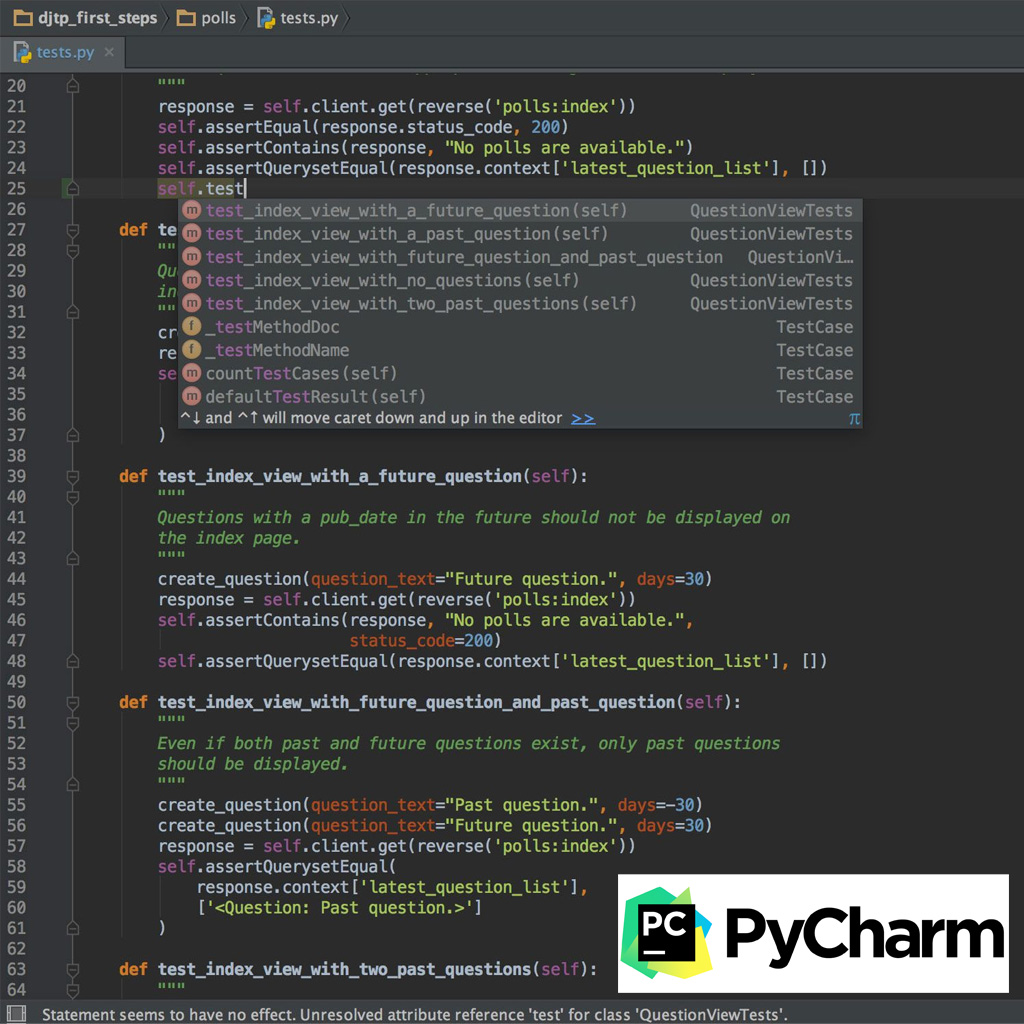
PyCharm offers a variety of advanced features that simplify the coding process, including:
- Intelligent Code Editor: Auto-completion, highlighting, and real-time code analysis.
- Integrated Tools: Terminal, database tools, and environment manager all in one place.
- Debugging and Integrated Testing: Simplify bug finding and fixing with visual debugging and unit testing.
- Project Navigation: Enables quick search and easier code navigation.
- Powerful Refactoring: Supports automatic code changes without disrupting the project structure.
- Integration with Version Control Systems (VCS): Full support for Git, SVN, and Mercurial.
- Data Science and Machine Learning: Supports Jupyter Notebook, SciPy, NumPy, and other related libraries.
- Multi-Technology Development: Can be used with various programming languages in application development.
- AI-Powered Code Assistant: With this technology, PyCharm is no longer just a static IDE but has evolved into a smart IDE that can collaborate with developers.
How to Install PyCharm to Run Python

To get started with PyCharm, you can download the Community version 2025.2.5 (free) via the official JetBrains link:
↓ Download PyCharm ↓
Select the appropriate operating system (Windows, macOS, Linux).
How to Install PyCharm:
- Double-click the PyCharm installer file, or right-click and select Run as Administrator, then click Next.
- Select the installation folder, then click Next.
- Adjust the configuration as needed, then click Next.
- Wait for the installation process to complete.
- Once complete, select Reboot Now to restart the computer (or select I want to manually reboot later if you prefer a manual restart).
- Click Finish.
Integration Steps to Ensure Python is Readable in PyCharm

After installing PyCharm as an IDE for running Python, it’s time to integrate it so that Python can be read by the application. To do this, follow these steps:
- Open PyCharm (double-click the application).
- Select Create New Project.
- Choose a theme according to your preference, then click Next: Featured plugins.
- Skip the plugin installation by selecting Start using PyCharm.
- Configure the project:
- Specify the location where the project file will be saved.
- In the New environment using section, select Virtualenv.
- Select the file location and save it in the project folder.
- In the Base Interpreter section, select the installed Python version (it will be automatically detected; if not, select it manually based on the Python installation location).
- Click Create, and the new project is ready to use.
- To create a new Python file: select File → New → Python File (.py).
Now PyCharm is ready to be used for Python coding.
Of the many Python IDEs available, Pycharm is the most comprehensive and best option. However, you’ll need to prepare a substantial fee and budget for the paid version.

AUTHOR BIO
On my daily job, I am a software engineer, programmer & computer technician. My passion is assembling PC hardware, studying Operating System and all things related to computers technology. I also love to make short films for YouTube as a producer. More at about me…



Leave a Reply