
Have you ever used the Particle Effect when creating a new object in Roblox Studio? Or even you do not know how to use the Particle Effect, do you? If you really don’t know how to use the Particle Effect in Roblox Studio, it’s commonly normal, as it’s a bit hard to do, especially if you’re not a game developer.
Using the particle effect in Roblox Studio requires the particle’s ID. You may be able to find the ID of particle effects in some forums, YouTube videos or also gaming blogs. No worries! This post will show you a list of particle effect IDs that we got from some sources. Let’s dive into our post to find them!
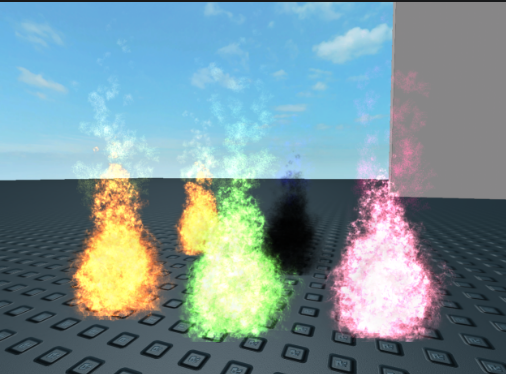
🔥List of Particle Effect IDs
Of our little research, there are only a few sources that provide a list of Particle Effect IDs. The following Particle Effect IDs are obtained from a YouTube video owned by Chels is#1 Channel. This video shows the list of Particle Effect IDs for some objects. Even though this video was uploaded in 2018, it’s really helpful for many players (as we viewed in the comments).
Here’s a list of Particle Effect IDs that you can use when creating a new object in Roblox Studio:
- Cupcake
Using this code 137302419 👉 add the Cupcake. - Music Symbols
Using this code 168314095 👉 add Music Symbols. - Costa Coffee
Using this code 348378444 👉 add Costa Coffee. - Wings
Using this code 554128889 👉 add Wings. - Fire Crossbones
Using this code 47563275 👉 add Fire Crossbones. - Jake
Using this code 75029057 👉 add Jake. - Speedcoil
Using this code 167171159 👉 add Speedcoil. - Wwe
Using this code 49068711 👉 add Wwe. - Creeper
Using this code 382702559 👉 add Creeper. - Real Doge
Using this code 334065007 👉 add Real Doge. - Café
Using this code 148705425 👉 add Café. - Smoothie
Using this code 645804421 👉 add Smoothie. - Mc Zombieface
Using this code 137580691 👉 add Mc Zombieface. - Japan Flag
Using this code 65602505 👉 add the Japan Flag. - Smoke Particle
Using this code 122434485 👉 add Smoke Particles. - Red Particle
Using this code 300899516 👉 add a Red Particle. - Orange Particle
Using this code 300899453 👉 add Orange Particles. - Yellow Particle
Using this code 300899419 👉 add Yellow Particles. - Green Particle
Using this code 300899374 👉 add Green Particles. - Blue Particle
Using this code 300899323 👉 add Blue Particles. - Leaf Particle
Using this code 330779576 👉 add Leaf Particles. - Many Color Particles
Using this code 149274647 👉 add Many Color Particles. - Explosion Particle
Using this code 569507469 👉 add Explosion Particles. - Random Particle
Using this code 12419512 👉 add Random Particles. - Vortex Particle
Using this code 341277531 👉 add a Vortex Particle. - Plasma Particle
Using this code 528280825 👉 add Plasma Particles. - Wacky Particle
Using this code 286247624 👉 add Wacky Particles. - Zonetan Particle
Using this code 555319080 👉 add Zonetan Particles. - Magma Particle
Using this code 554713699 👉 add Magma Particle. - Lazer Particle
Using this code 560935846 👉 add Lazer Particle. - Lightning Particle
Using this code 569507523 👉 add a Lighting Particle. - Weird Purple Particle
Using this code 576551165 👉 add Weird Purple Particles. - Feather Particle
Using this code 242842525 👉 add a Feather Particle. - Brown Leaf Particle
Using this code 244982565 👉 add Brown Leaf Particles. - Shock Particle
Using this code 291643237 👉 add a Shock Particle.
Okay, that’s a list of Roblox Particle Effect IDs. So, you can use the IDs above to add any certain particles to your new object.
How Does Roblox Particle Effect Work?
According to Roblox Wiki, particle effect is something that has visual and sound effects that can be added into an object in Roblox. In other words, particle effect is such an additional feature in Roblox that delivers the special effect to an object. With the use of particle effects, the object you’re creating will be more attractive and beautiful.
In Roblox games, particles will be used to make a wide range of effects. There are at least three elements/ effects that make the objects having the special particle effect including fire, smoke and sparkles. The particles will also help you bring your game world to life. Aside from that, they also provide precious visual feedback for you players.
It’s important to note, not all objects in Roblox can be added with the special particle effects. The category ‘Accessories’ found in Roblox catalog is the one of the objects that can be added with the Particle Effect. However, Roblox gear is not included into this category, so you can not add special particle effects to Roblox gear.
What are the Types of Roblox Particle Effect?
There are two basic particle effects in Roblox, they are Particle Emitters and Emission. Let’s see each explanation below!
Type 1: Particle Emitter
To create a sparking effect around an object, you will need to use a Particle Emitter object. When parented to a part or Attachment, this type will emit particles from its position. The particle Emitter comes in 2D images which always face the camera.
According to the emitter’s properties, the particles will move or change color. You definitely can make an incredible array of different effects by changing just a few of these.
Here’s the example of making sparkles in a model of a gold nugget:
- First, you need to create a MeshPart in the Workspace and name it GoldNugget.
- Then, adjust the Meshid property to rbxassetid://2903918852.
- Adjust the Material property to Neon and the color property to 255, 180, 0.
- You can then insert a ParticleEmitter object into the part.
- After you add the emitter, the white stars will start emitting from the part automatically.
Type 2: Particle Emission
According to the EmissionDirection property, the particles will emerge from one face of the part that are generated randomly throughout the entire volume of a part. It defaults to Top, which means the top surface of a part. Well, the direction that the particles will be emitted from will change randomly if you rotate the part. When you resize the part to be bigger, the particles are emitted over a wider area.

AUTHOR BIO
On my daily job, I am a software engineer, programmer & computer technician. My passion is assembling PC hardware, studying Operating System and all things related to computers technology. I also love to make short films for YouTube as a producer. More at about me…
![Roblox Greenville [Auto Farm] Scripts](https://www.alfintechcomputer.com/wp-content/uploads/2025/08/Roblox-Greenville-Auto-Farm-Scripts-450x240.jpg)


![Roblox Universal Script [Noclip]](https://www.alfintechcomputer.com/wp-content/uploads/2025/03/Roblox-Universal-Script-Noclip-450x240.jpg)






Leave a Reply